Wi-Fi and network
Printer on Mesh Wi-Fi: Setup Steps That Prevent Dropouts
Written by Printers Setup Editorial Team · Updated
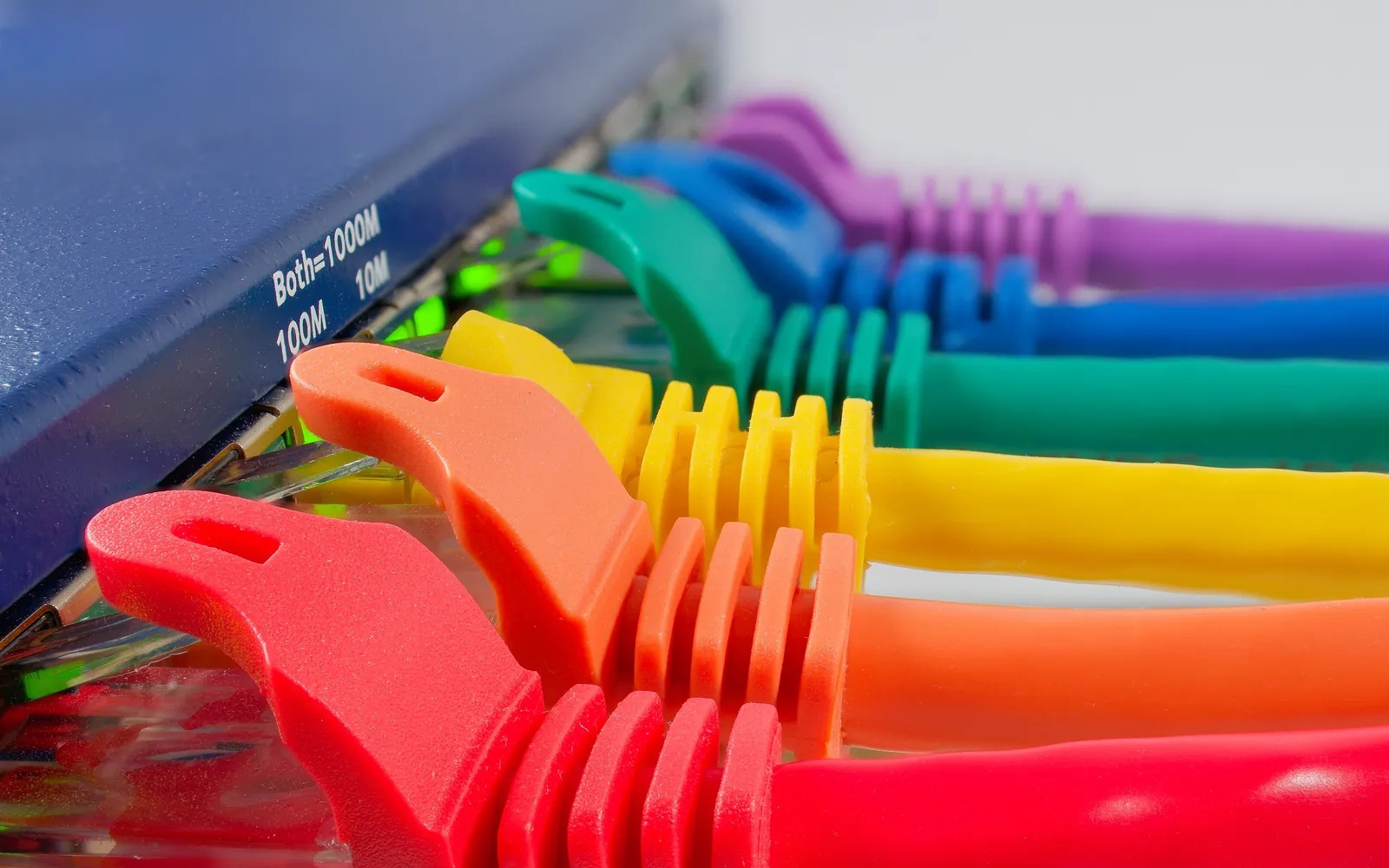
Mesh systems such as Google Nest Wifi, eero, Deco or Orbi spread one Wi-Fi network across the home with several small units. A printer on mesh Wi-Fi works like any other device on that network, but mesh systems make a few choices automatically that can trip printers up: they hide the difference between bands, they hand out new IP addresses, and they are often installed alongside an older router. This guide sets the printer up so that every computer and phone can find it reliably.
How a mesh network looks to a printer
To your printer, a mesh system is one Wi-Fi network with one name and password. The units pass traffic between themselves, so a laptop upstairs can print to a printer downstairs even if they are connected to different mesh points. What matters is that both are on the same network: same main network name, behind the same router, not the guest network.
Step 1: check the mesh settings first
Open your mesh app and look at the Wi-Fi settings before touching the printer:
- One name for all bands. Apple’s router recommendations say the network name should be a single, unique name for all bands. Most mesh systems do this already.
- 2.4 GHz switched on. Many home printers only use 2.4 GHz. Some mesh apps let you disable a band; leave 2.4 GHz on. Our 2.4 GHz printer guide explains why printers favour it.
- Security. Use WPA2 Personal or WPA3 Personal; Apple’s recommendations list older WEP, WPA and TKIP modes as settings to avoid. A very old printer that only understands those older modes may not join a modern mesh network, and may be better on Ethernet.
You do not normally need to split the bands into two names. If a printer refuses to join a combined network, some mesh apps offer a temporary compatibility or “pause 5 GHz” option for setup; check your system’s help pages.
Step 2: join the printer to the main network
Use the printer’s normal wireless setup: the wizard on its screen, the WPS button, or the maker’s app. See our wireless printer setup guide or the brand guides for Epson, Brother and HP. If you have just replaced an old router with mesh, the printer is still looking for the old name; follow connect a printer to a new Wi-Fi network.
Set the printer up close to a mesh point if you can. Once it has connected, print its network status page and note the IP address.
Step 3: reserve the printer’s IP address
Mesh systems hand out addresses automatically, and a printer can get a new one after a power cut. Computers that added the printer by its old address then lose it. Google’s Nest help gives exactly this example: if a printer’s IP address keeps changing, your computer may not always find it, so give it a fixed address.
In the Google Home app the steps are Wi-Fi, Network settings, Advanced networking, DHCP IP reservations, then add a reservation and pick the printer. Other mesh apps have a similar option under advanced, LAN or DHCP settings. Google notes the device may need to disconnect and reconnect before it picks up the reserved address, so turn the printer off and on afterwards. Our guide to finding a printer’s IP address explains reservations and static addresses in more detail.
Step 4: avoid two routers running side by side
A common mesh problem is an internet provider’s router still acting as a router, with the mesh system plugged in behind it also acting as a router. That creates two separate private networks, known as double NAT. Google’s help describes the result for printing directly: your computer may be on one network while the printer is on the other, and the computer cannot tell the printer to print.
Signs of this setup are two Wi-Fi names in the house, or devices getting addresses from two different ranges. The fix is to have one router: put the mesh system in bridge mode, or put the provider’s router in bridge or modem-only mode, and turn off the provider’s Wi-Fi. Check which option your mesh system and provider support before changing anything.
Step 5: add the printer on each device
With the printer on the main network and a fixed address, add it as usual:
- Windows 11 and Windows 10
- Mac and Chromebook
- iPhone and iPad and Android
If a computer finds the printer automatically, that is fine. If it does not, add it by the reserved IP address.
Guest networks and printers
Mesh systems make it easy to switch on a guest network, and devices on it are kept apart from the main network. That is good for security but means guests cannot see your printer unless you allow it. Google’s Nest guest network settings include a Shared devices list where you can pick devices, such as a printer, for guests to use. Keep the printer itself on the main network and share it, rather than moving it to the guest network. Our guide to letting guests print on a guest Wi-Fi network covers this in more detail.
WPA3 on newer mesh systems
Many recent mesh systems turn on WPA3 by default or offer it as an option in their app. A printer that only supports WPA2 cannot join a WPA3-only network, however strong the signal. The symptom is confusing: the printer sees the network name, accepts the password and then reports that the connection failed. Rather than lowering security for the whole house, switch the network to WPA2/WPA3 transitional mode. Our guide to printer WPA3 Wi-Fi setup covers the settings, including the WPA3 option on Google Nest routers.
Mixing mesh and an old extender
Adding an old range extender next to a mesh system often creates a second network name, and sometimes a second network with its own address range. The printer can then end up somewhere your computers cannot see it. If you already own an extender, our guide to connecting a printer to a Wi-Fi extender explains how to check that everything stays in one address range, or use the extender’s Ethernet port for the printer.
Wired is the most reliable option
Many mesh points have one or two Ethernet ports. If the printer has a network port and sits near a mesh point, a short cable removes Wi-Fi from the equation. See our Ethernet printer setup guide.
Frequently asked questions
Why can my computer not find the printer on my mesh network?
The usual causes are the printer and computer being on different networks (main and guest, or two routers running side by side), the printer's IP address having changed, or the printer having dropped off Wi-Fi. Print the printer's network status page and compare its network name and IP address with your computer's.
Should I turn off 5 GHz for my printer?
Usually not. Most mesh systems use one network name for both bands and let each device choose. A printer that only supports 2.4 GHz will simply use that band. Only check the 2.4 GHz band is enabled and not hidden.
Do I need a static IP address for the printer?
It helps. A DHCP reservation in the mesh app gives the printer the same address every time. Google's Nest help uses a wireless printer as its example of a device that benefits, because the computer and printer find each other through IP addresses.
Can I plug the printer into a mesh point with a cable?
Yes, if the mesh point has an Ethernet port and the printer has one. A wired connection avoids Wi-Fi dropouts entirely and the printer is still on the same network as everything else.
Sources
Editorial team
The Printers Setup team writes and reviews step-by-step printer setup guides and checks them against the current menus of Windows, macOS, ChromeOS, iOS and Android.


