Wi-Fi and network
Ethernet Printer Setup: Connect a Printer With a Cable
Written by Printers Setup Editorial Team · Updated
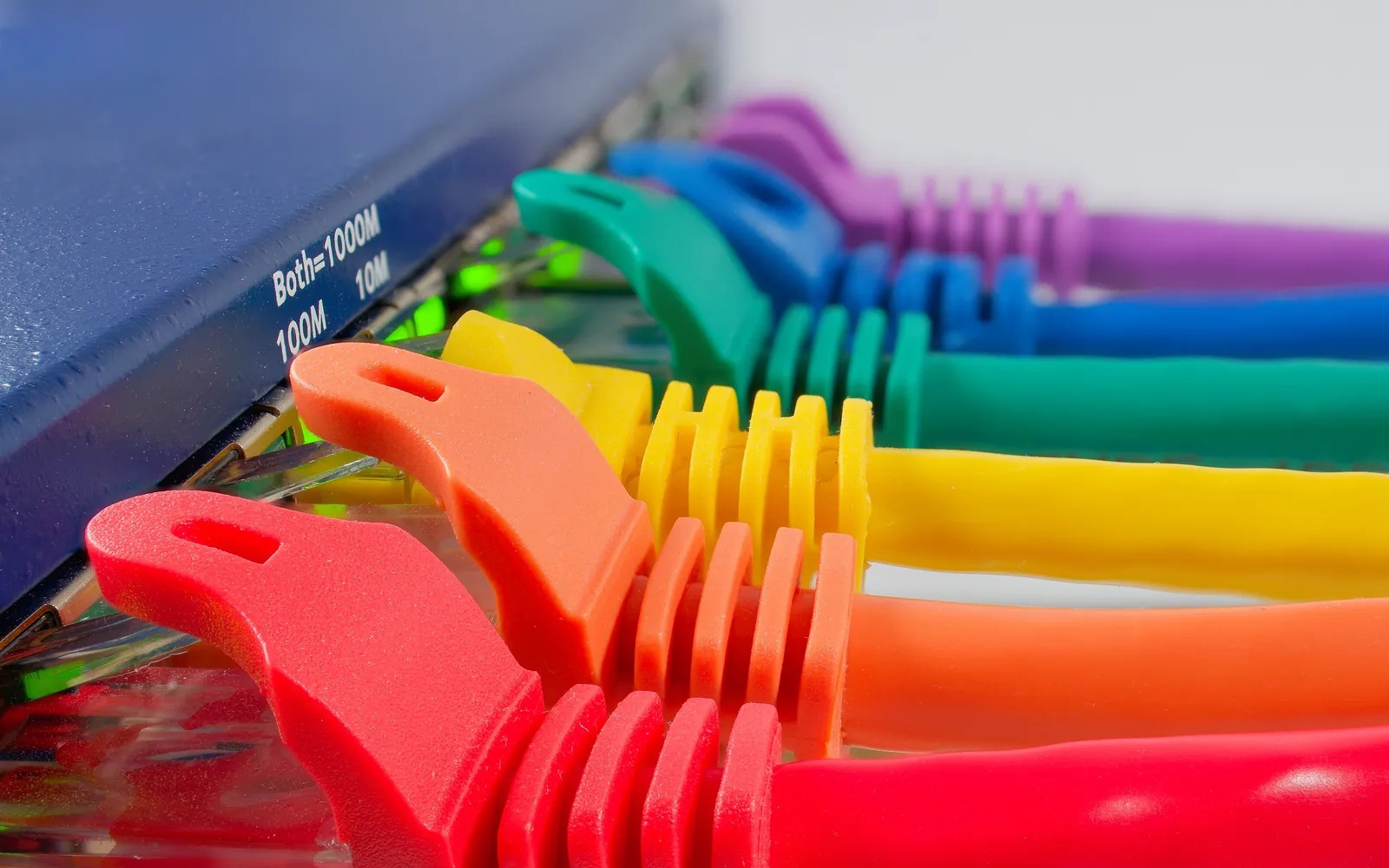
Ethernet printer setup means connecting the printer to your router with a network cable instead of Wi-Fi. It takes about five minutes, needs no passwords, and gives the most dependable connection a home or small office printer can have. Every device on your network, including phones and laptops on Wi-Fi, can still print to it.
If your printer has no network port (look for a socket like a large phone jack, often labelled with three connected squares), use Wi-Fi instead; see the wireless printer setup guide.
What you need
- A printer with an Ethernet (LAN) port.
- A network cable with RJ-45 plugs. Cat 5e or Cat 6 are both fine.
- A free LAN port on your router, or on a network switch connected to it. If the router is in another room, a powerline adapter pair or a mesh node with a LAN port can bring the network to the printer.
Do not plug the network cable into the printer’s fax/line socket; that is the narrower RJ-11 phone port.
Step 1: connect the cable
- Switch the printer off.
- Plug one end of the cable into the printer’s Ethernet port until it clicks.
- Plug the other end into a numbered LAN port on the router (not the WAN or Internet port, which is often a different colour).
- Switch the printer on.
Within a few seconds the small lights beside the printer’s port should come on or flicker, showing a link.
Step 2: check the printer got an address
Routers hand out addresses automatically through DHCP. Give the printer a minute, then print a network configuration report from its settings menu or with the button combination in the manual. Look for:
| Line | Good value |
|---|---|
| Connection type | Wired or Ethernet |
| Status | Connected |
| IP address | Something like 192.168.1.45 or 192.168.0.20 |
If your printer has no report option, or you would rather look it up from a computer or the router, our guide to finding a printer’s IP address lists the other ways to get it.
If the address starts with 169.254, the printer did not reach the router’s DHCP service. Check the cable, try a different LAN port, and restart the router.
Many printers switch Wi-Fi off automatically when a cable is plugged in. If the report still shows Wi-Fi as active, it is fine to leave it, but turning wireless off in the printer menu avoids confusion.
Step 3: reserve the IP address
Printers that change address are the most common cause of “it worked yesterday” problems. Fix it once:
- Open your router’s app, or type its address (often printed on the router label) into a browser.
- Find the list of connected devices or DHCP clients, and locate the printer by its name or MAC address (also on the network report).
- Choose Reserve IP, Address reservation or Static lease for it.
This is safer than typing a fixed address into the printer itself, because the router then knows not to give that address to anything else.
Step 4: add the printer on your computers and phones
- Windows 11: Settings, Bluetooth & devices, Printers & scanners, Add device. If it is not found, use Add manually with the reserved IP. See how to add a printer in Windows 11.
- Mac: System Settings, Printers & Scanners, Add Printer, Scanner or Fax, or use the IP tab with AirPrint. See add a printer on Mac.
- Chromebook: see add a printer on a Chromebook.
- Phones: nothing extra to do; they find the printer over Wi-Fi. See print from iPhone and print from Android.
Moving a printer from Wi-Fi to Ethernet
If your printer is already set up on Wi-Fi and you are switching it to a cable, expect one extra step. A printer’s wired and wireless connections have separate hardware (MAC) addresses, so the router usually treats the cabled printer as a new device and gives it a different IP address. Any IP reservation you made for the Wi-Fi connection does not carry over.
Work through it in this order:
- Plug in the cable, switch the printer on and print a fresh network configuration report. Confirm it shows a wired connection and note the new IP address and the wired MAC address.
- In the router, remove the old reservation for the wireless MAC address and reserve the new address for the wired one.
- Turn Wi-Fi off in the printer’s network menu if it did not switch off by itself, so the printer does not appear twice on the network.
- On each computer, check the printer still prints. Computers that found it automatically (by Bonjour, WSD or IPP discovery) often reconnect on their own. Computers where you added it by IP address need updating: the simplest fix is to remove the printer and add it again with the new address.
- Phones need no changes; they discover the printer afresh each time they print.
Going the other way, from cable to Wi-Fi, follows the same logic: run the printer’s wireless setup, then reserve the new wireless address.
Using the printer’s web settings page
Type the printer’s IP address into a browser on a computer on the same network to open its built-in web page (often called the Embedded Web Server). From here you can rename the printer, update its firmware, set up scan to email or a network folder, and change network settings. Many printers ask for an admin password printed on a label or the network report the first time.
Tips for a tidy wired setup
- Use a cable long enough to avoid strain on the printer’s port.
- If you need more LAN ports, an inexpensive unmanaged switch adds several.
- If several people use the printer, see how to share a printer on your network; with a networked printer, every computer simply adds it directly.
Frequently asked questions
Can phones print to a printer connected by Ethernet?
Yes. The printer is on the same network as your Wi-Fi, so iPhones and Android phones on that Wi-Fi can find and print to it as usual.
What cable do I need?
A standard Ethernet network cable with RJ-45 plugs. Cat 5e or Cat 6 cables are both fine; printers do not need high speeds. Do not confuse it with the narrower phone (RJ-11) socket used for fax.
Should I set a static IP on the printer?
A DHCP reservation in the router is usually easier and safer than typing a static address on the printer, because the router keeps track of it and avoids conflicts.
Can a printer use Ethernet and Wi-Fi at the same time?
Most home printers use one or the other. Plugging in a cable often switches Wi-Fi off automatically. Check the network report to see which is active.
Sources
Editorial team
The Printers Setup team writes and reviews step-by-step printer setup guides and checks them against the current menus of Windows, macOS, ChromeOS, iOS and Android.

