Computers
How to Print a Test Page on Windows, Mac and the Printer
Written by Printers Setup Editorial Team · Updated
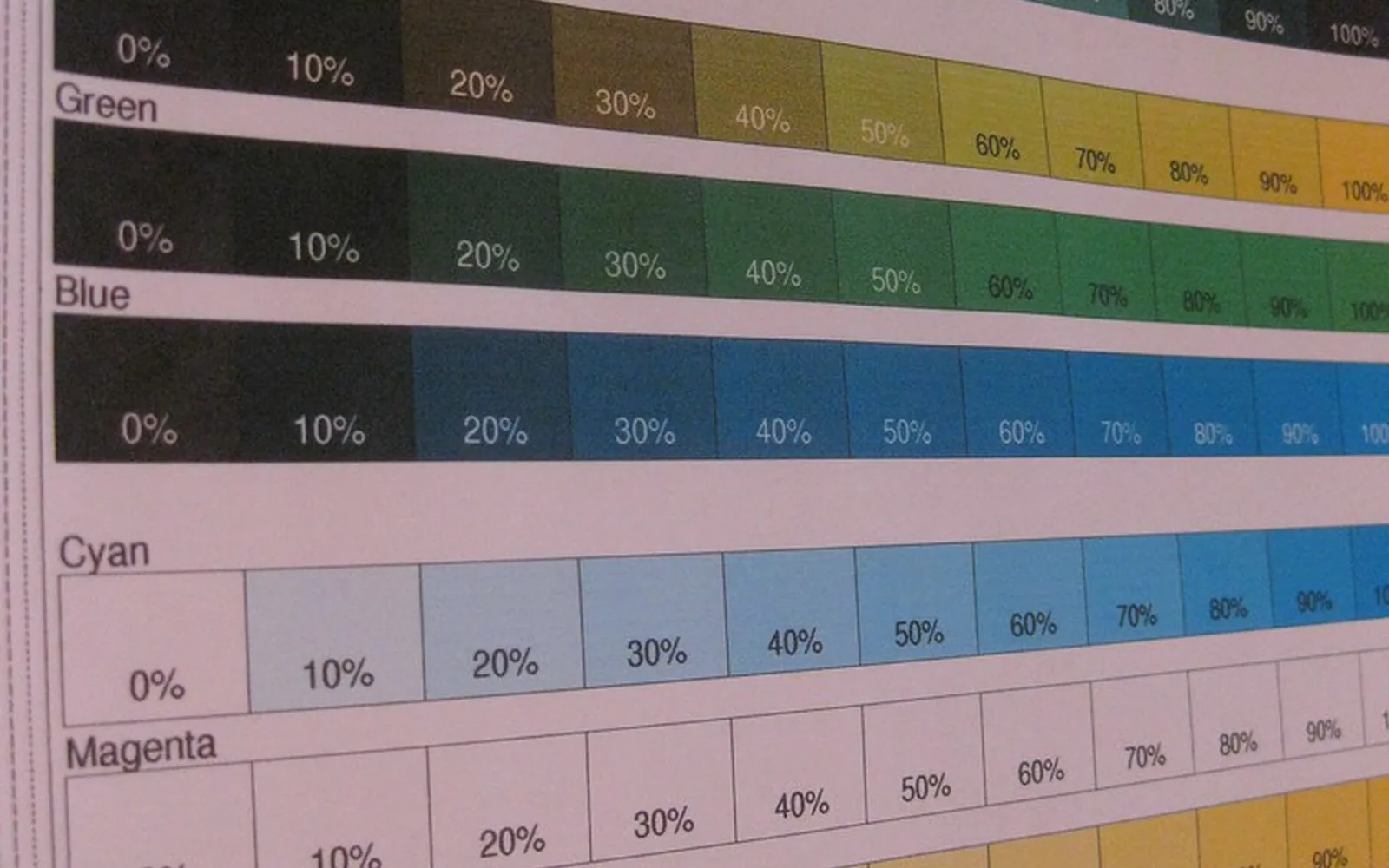
Knowing how to print a test page is the quickest way to answer the question every new setup raises: does it actually work? A test page from your computer checks the whole chain at once, from the computer and the driver to the cable or Wi-Fi and the printer. A test page from the printer’s own buttons checks the printer on its own. Used together, they tell you where a problem sits before you start changing settings. Here is how to print both on every common system.
Two kinds of test page
| Test page | Printed from | What it proves |
|---|---|---|
| Computer test page | Windows, Linux (CUPS) or a short document on Mac and Chromebook | The computer, driver, connection and printer all work together |
| Printer self-test, status or configuration page | The printer’s control panel or buttons | The printer itself works; often also shows its network settings |
| Nozzle check pattern | The printer’s panel or the maker’s utility | Every ink nozzle is firing (inkjets) |
If the printer’s own page prints but the computer’s does not, the printer is fine and the problem is the connection or the driver. If neither prints, start with the printer: paper, ink or toner, error lights and messages.
Windows 11
Epson’s Windows guide gives this path, and it works for any printer:
- Load a few sheets of plain paper.
- Open Start, then Settings.
- Select Bluetooth & devices, then Printers & scanners.
- Select your printer’s name.
- Select Printer properties, then Print Test Page, then Close when the confirmation appears.
On some Windows 11 builds, the printer’s page also shows a Print test page option directly; use whichever you see. If the printer is not in the list at all, it has not been added yet. See how to add a printer in Windows 11.
Windows 10
- Open Start, Settings, Devices, Printers & scanners.
- Select the printer, then Manage.
- Select Print a test page.
You can also open Control Panel, Devices and Printers, right-click the printer, choose Printer properties and click Print Test Page. Our Windows 10 printer guide has more on the Manage page.
Reading the Windows test page
The Windows test page lists details worth checking: the printer name, the driver name, the port and, for network printers, often the IP address the computer is using. If the driver name is a generic one when you expected the maker’s driver, or the port points to an old IP address, that explains odd behaviour later. Our guides to installing a printer driver in Windows 11 and finding a printer’s IP address help you correct either.
Mac
macOS does not have a general test page button in System Settings. Instead:
- Print a short document from TextEdit, Preview or a web browser. If it prints correctly, the Mac, connection and printer are working.
- Use the maker’s utility if your printer has one. Some drivers add a utility under Options & Supplies in Printers & Scanners, or as a separate app. Canon’s IJ Printer Utility, for example, has a Test Print section with a nozzle check.
If the printer is not listed on the Mac, see how to add a printer on a Mac.
Chromebook
ChromeOS has no test page button either. Print any web page or a short Google Docs file with Ctrl + P and pick your printer in the Destination list. If it is missing, follow our Chromebook printer guide.
Linux
On Ubuntu and other desktops, open Settings, Printers, open the printer’s menu and choose Print Test Page where offered. On any system running CUPS, the CUPS web interface also has a Print Test Page action in the printer’s maintenance menu. Our Ubuntu printer guide covers adding the printer first.
From the printer itself
Every printer has a way to print a page without a computer. The names differ:
- Status sheet or network status sheet (Epson). Epson’s guide says printers with a screen use Setup, Wi-Fi Settings, Print Status Sheet, and printers without a screen print one when you hold the information button for at least 10 seconds.
- Network configuration report (Brother). Printed from the reports menu; it shows the connection status and IP address.
- Printer status or network configuration page (HP and others). Usually from the settings or reports menu on the panel, or a button combination in the manual for models without a screen.
- Nozzle check pattern (inkjets). Canon’s manual explains that you print the pattern on plain paper and run a cleaning only if lines are missing or smudged.
A network report is especially useful after a Wi-Fi setup: it confirms the network name the printer joined and its IP address. See our wireless printer setup guide for the full process.
From a phone or tablet
iPhone, iPad and Android have no “print test page” button. The simplest check is to print something short with known content, such as a one-page web article or a photo, through the normal Share or Print menu. If it prints correctly, the phone, network and printer are all working together. Our guides to printing from an iPhone and printing from Android cover the setup if the printer does not appear.
When to print one
A test page is worth the sheet of paper after any change that could affect printing:
- After adding or re-adding a printer, on each computer and phone.
- After a firmware update, to confirm the printer still works with your devices; see update printer firmware.
- After a router, mesh or extender change, since the printer may have joined a different network; see connect a printer to a Wi-Fi extender.
- After changing default settings or presets, such as two-sided printing on Windows or print presets on a Mac.
- Before a large photo job, including prints made straight from a USB flash drive, where the printer’s own paper settings apply.
What to do with the result
- Computer test page prints cleanly: setup is done. If one app still will not print, check that app’s printer and paper settings.
- Printer’s own page prints, computer’s does not: check the connection (USB cable, same Wi-Fi network), then remove and re-add the printer. Our guide to connecting a printer to a laptop with USB covers cable problems.
- Pages print with missing lines or colours: run a nozzle check and a cleaning cycle from the printer’s maintenance menu, as Canon’s manual describes. Only clean when the check shows gaps, because each cleaning uses ink.
- Nothing prints at all: look for error lights or messages, make sure there is paper and ink or toner, and confirm the printer is switched on and not in a paused or offline state.
Keep the network report from a successful setup with your printer’s paperwork. The next time something changes, such as a new router, you will know what the settings used to be.
Frequently asked questions
How do I print a test page in Windows 11?
Open Settings, Bluetooth & devices, Printers & scanners, select your printer, choose Printer properties and click Print Test Page. Epson's Windows guide gives the same path. Some versions of Windows 11 also show a Print test page option directly on the printer's page.
How do I print a test page in Windows 10?
Open Settings, Devices, Printers & scanners, select the printer, choose Manage, then Print a test page. You can also right-click the printer in Devices and Printers, choose Printer properties and click Print Test Page.
Can I print a test page on a Mac?
macOS does not have a general test page button. Print a short document from any app, or use the printer maker's utility, which some drivers add under Options & Supplies or as a separate app; Canon's utility, for example, has a nozzle check under Test Print.
How do I print a test page from the printer itself?
Most printers can print a status, configuration or network report from the control panel or by holding a button. On Epson printers without a screen, Epson's guide says to hold the information button for at least 10 seconds to print a network status sheet. Your manual gives the exact steps.
What does it mean if the test page prints but my documents do not?
The printer, connection and driver work, so the problem is in the app or the print settings. Check the printer selected in the app's print dialog, the paper size and the page range.
Sources
Editorial team
The Printers Setup team writes and reviews step-by-step printer setup guides and checks them against the current menus of Windows, macOS, ChromeOS, iOS and Android.

